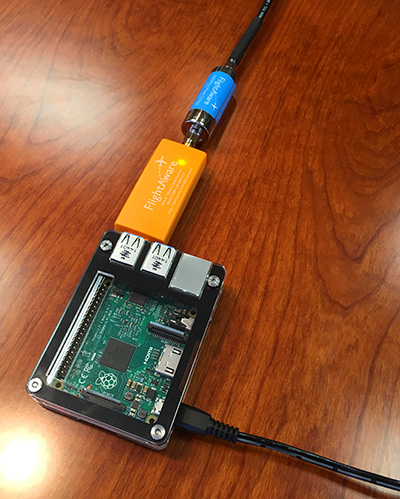
一旦您运行了设备,请:
Option 1
Find and claim the FlightFeeder device through Bluetooth using the FlightAware iOS App or using the FlightAware Configure Page
(Keep in mind, the Bluetooth method will only work for devices with PiAware image flashed on to the SD card, not manually installed.)
Option 2
Manually claim your FlightFeeder device online through your FlightFeeder's IP address.
If using an LCD Screen or if able plug in the Raspberry Pi device into a monitor through an HDMI Cable, the FlightFeeder IP address can be found through the PiAware UI display.
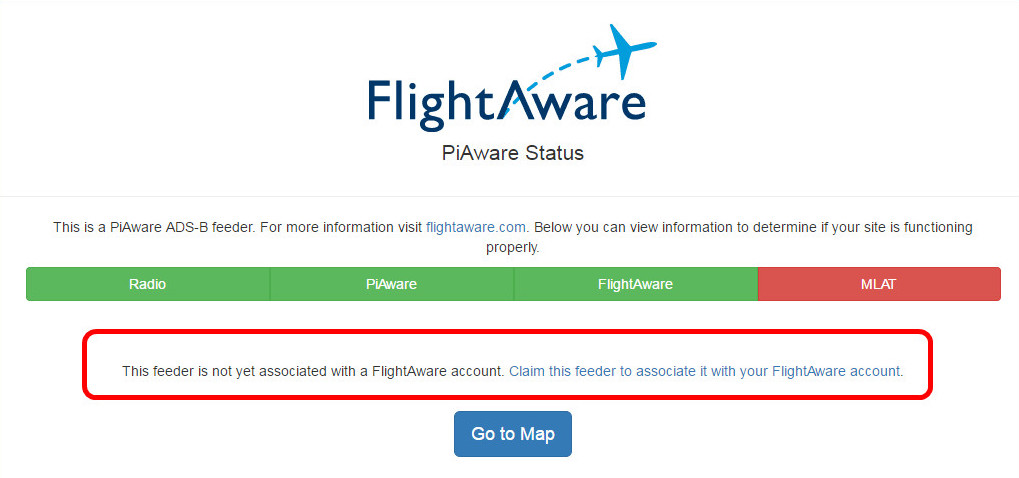
While on your computer, look up the local IP address assigned to your PiAware device through your router/firewall and search for the assigned IP address in a browser on the same network. If the device hasn't been claimed a link to claim the PiAware device will display.
Option 3
If you have command line access you can get the FlightFeeder's unique ID using the command: With the unique ID for the feeder you can enter it into the end of the URL below in place of the x's:
cat /var/cache/piaware/feeder_id
With the unique ID for the feeder you can enter it into the end of the URL below in place of the x's:
https://www.flightaware.com/adsb/piaware/claim/xxxxxxxx-xxxx-xxxx-xxxx-xxxxxxxx
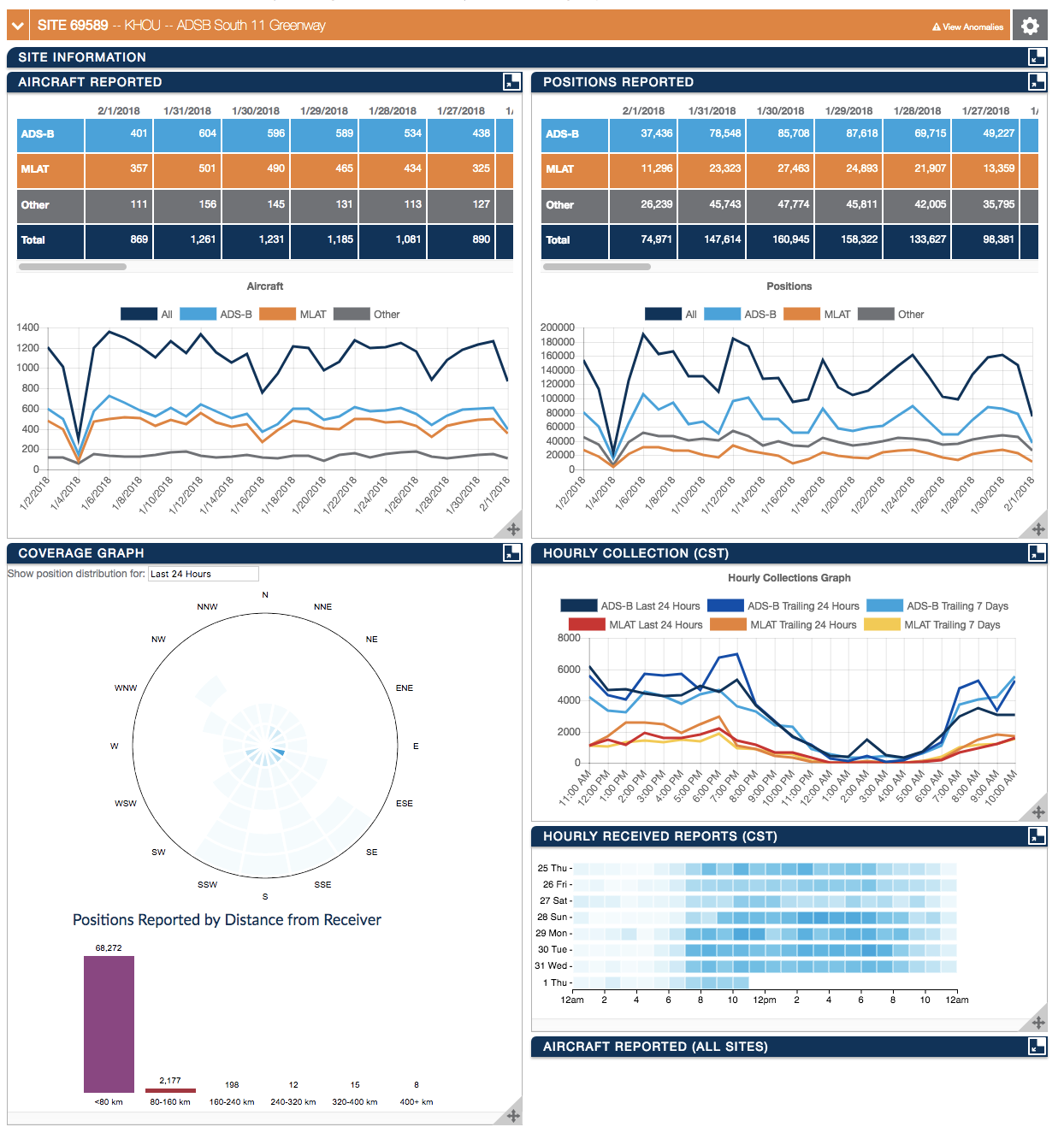
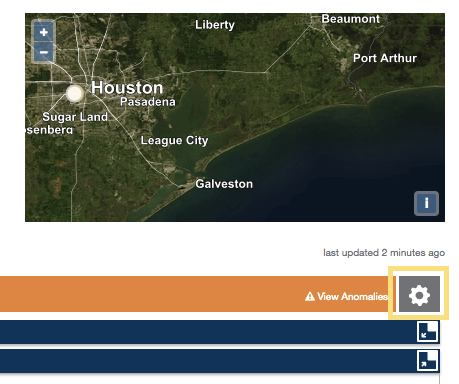
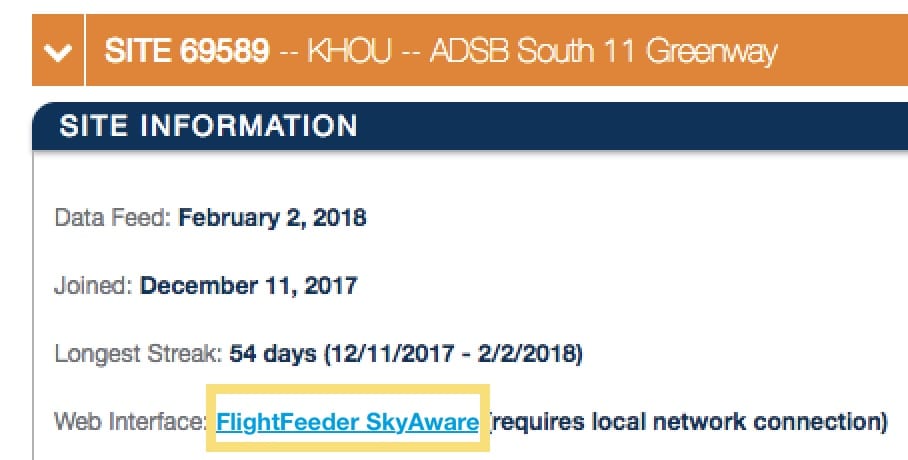
如果5分钟后您的设备还未显示为已绑定,请重新启动设备,如果这仍然不起作用,请重新确认Wi-Fi设置(如果使用Wi-Fi)正确无误。最后,您还可以通过ADSBsupport@FlightAware.com与我们联系。请检查您的统计信息页面(见以下链接)以确认其是否绑定。